
Alerting on Changes to Exchange Online threat policies
The Microsoft 365 landscape provides a significant number of security features that an organization can configure to protect themselves against constantly evolving threats. These protections are often available based on the license version you have purchased from Microsoft as opposed to being available by default to all customers. In the case of Exchange Online, the following threat policies are available to all customers, without requiring extra license (e.g. Defender for Office 365 Plan 1/2):
- Anti-malware protection – capability that identifies malware in exchange online mailboxes. It is comprised of layered defenses including ability to directly block attachments that are of a certain file type (e.g. block all inbound emails with .HTML file attachments). This is especially useful for preventing application file types from executing when double-clicked in Windows—by ensuring they are never delivered in the first place. A good example here is .js file – it runs automatically in windows when double clicked – similar to EXE files. While EXE files are by default blocked by the policy, JS files are not.
- Anti-spam protection – capability that identifies junk messages (which continuously improves based on emails flagged by users, including the consumer emails on outlook.com). It blocks not just single spam messages but also bulk delivered spam across multiple mailboxes. You can configure these policies to be quite aggressive – in fact you can configure it in a way that all emails from certain countries are automatically flagged as spam.
- Anti-Phishing protection – capability that helps against spoofed (forged) senders. Spoofed messages appear to originate from someone or somewhere other than the actual source.
- Outbound spam protection – capability that may deny email sending if certain suspicious sending patterns occur or email sending reaches a limit. This policy also controls whether email forwarding in the organization is allowed or not (e.g. you may want to disable this feature to avoid GDPR-related data from being leaked outside the organization).
- Quarantine (incl associated policies) – capability that holds malicious/dangerous or unwanted messages. For example, if the anti-malware protection flags a message as malware, it will be held in this quarantine and not delivered to the user (unless released by the user/admin depending on configuration).
- Allow and block domains / URLs / senders – this is a capability that gives admins an ability to override Exchange Online’s behavior as to whether to allow or block emails depending on certain characteristics, such as sender address.
If you also have Defender for Office 365 Plan 1/2 in your license, you will also get threat policies for:
- Safe attachments – capability that provides an additional layer of protection for email attachments that have already been scanned by the anti-malware protection but were not flagged as malicious. Safe Attachments uses a virtual environment to check attachments in email messages for harmful attachments (eg. malware and phishing) before they’re delivered to recipients (a process known as detonation).
- Safe links – a capability that provides a layer of protection against malicious links that are used in phishing attacks. Safe Links provides URL scanning and rewriting of inbound email messages during mail flow, and time-of-click verification of URLs and links in email messages, Teams, and supported Office 365 apps. Safe Links scanning occurs in addition to regular anti-spam and anti-malware protection.
- Added features in the anti-phishing policies (such as impersonation protection)
These policies are available in the Microsoft Defender portal at https://security.microsoft.com ‘Email & collaboration’ > ‘Policies & rules’ > ‘Threat Policies’.
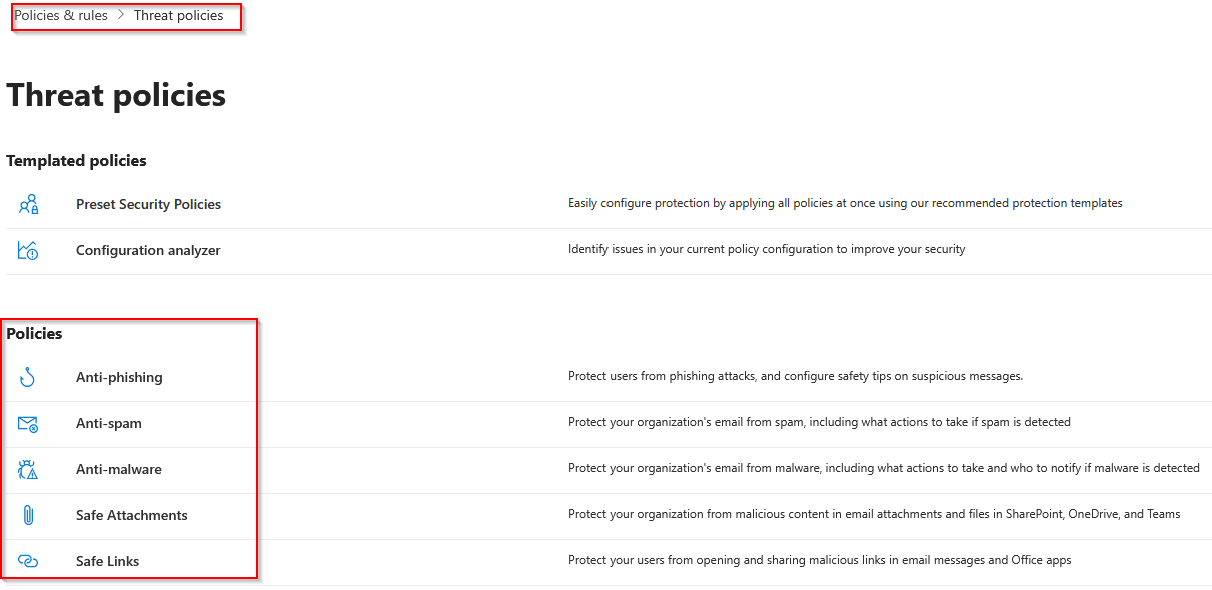
When these policies are configured and/or modified, an audit log is generated. This log can be queried for in the Microsoft365 unified logs as well as the “Advanced Hunting” section. In the Advanced Hunting section, they are stored in the table ‘CloudAppEvents’.
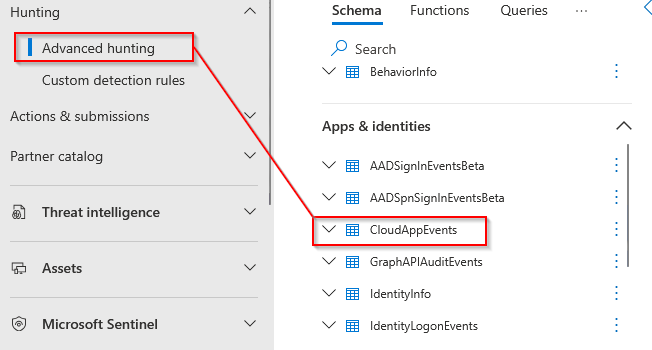
Each policy is associated with a different action types. I have tried to provide an overview in the table below:
| Policy | Action Type |
|---|---|
| Anti-Malware Policy | New-MalwareFilterPolicy, New-MalwareFilterPolicy, Remove-MalwareFilterPolicy |
| Anti-Phishing Policy | New-AntiPhishPolicy, Set-AntiPhishPolicy, Remove-AntiPhishPolicy |
| Anti-Spam Policy | New-HostedContentFilterPolicy, Set-HostedContentFilterRule, Remove-HostedContentFilterRule, Enable-HostedContentFilterRule, Disable-HostedContentFilterRule |
| Outbound Anti-Spam Policy | New-HostedOutboundSpamFilterRule, Enable-HostedOutboundSpamFilterRule, Disable-HostedOutboundSpamFilterRule, Remove-HostedOutboundSpamFilterRule, Set-HostedOutboundSpamFilterRule, New-HostedOutboundSpamFilterPolicy, Set-HostedOutboundSpamFilterPolicy, Remove-HostedOutboundSpamFilterPolicy |
| Safe Attachments Policy | New-SafeAttachmentPolicy, Set-SafeAttachmentPolicy, Remove-SafeAttachmentPolicy |
| Safe Links Policy | New-SafeLinksPolicy, Set-SafeLinksPolic, Remove-SafeLinksPolicy |
| Allow/Block List | New-TenantAllowBlockListItems, Set-TenantAllowBlockListItems, Remove-TenantAllowBlockListItems |
| Transport rule in Exchange | New-TransportRule, Enable-TransportRule, Disable-TransportRule |
IMPORTANT
Even with the correct licenses, you are required to ensure that this activity is in fact stored. It can be configured in ‘https://security.microsoft.com‘ -> Settings -> Cloud apps -> App Connectors. You need a connector for Microsoft 365, which includes all of this activity:
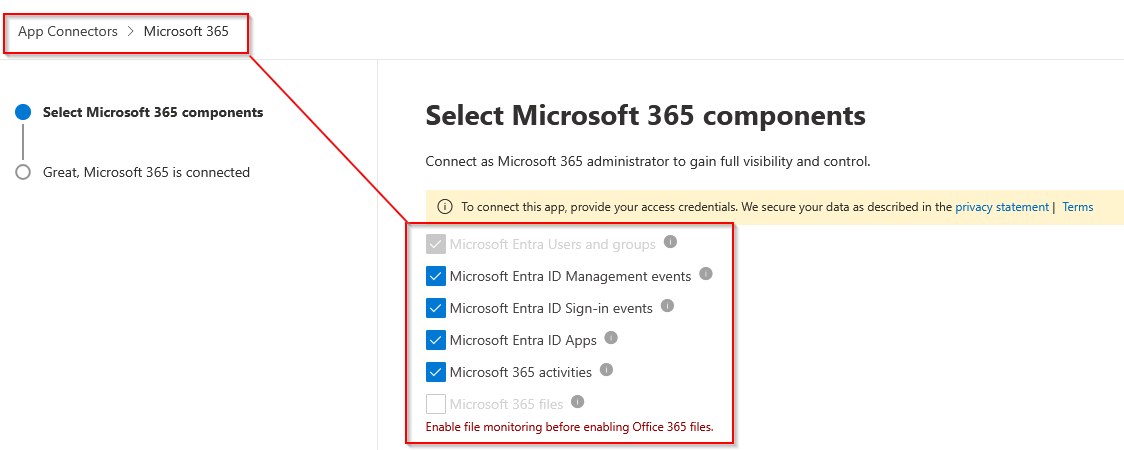
Once enabled, it may take 24-72 hours, before you see logs coming in (so be patient).
Querying logs
To query the logs for changes to the Outbound Anti-Spam policy, we would execute the following query:
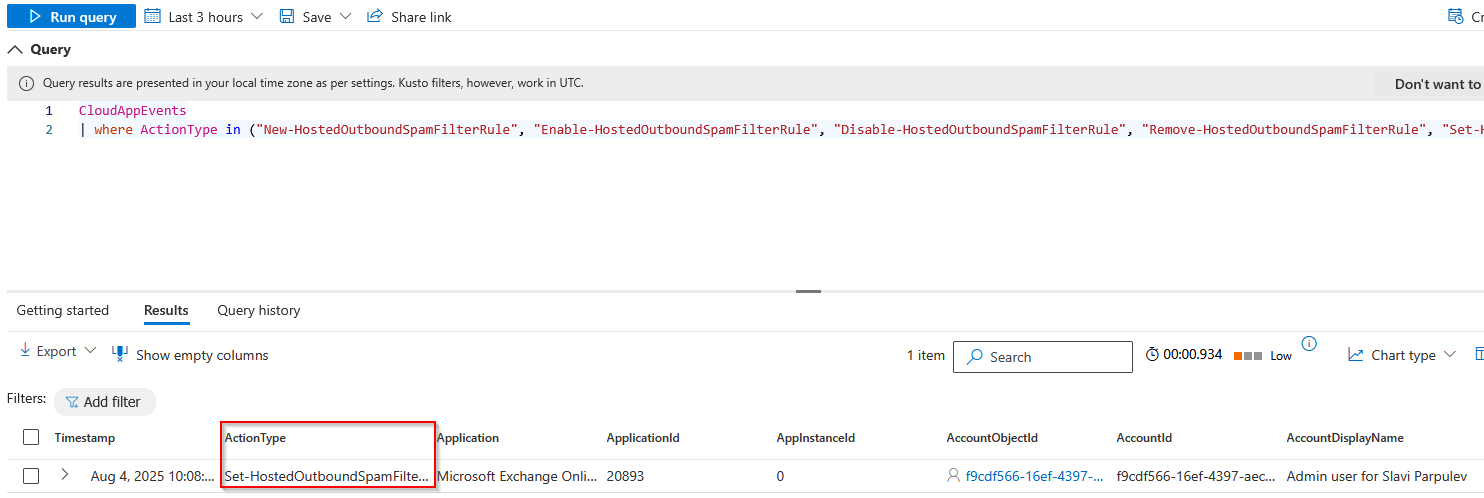
The query is:
CloudAppEvents
| where ActionType in ("New-HostedOutboundSpamFilterRule", "Enable-HostedOutboundSpamFilterRule", "Disable-HostedOutboundSpamFilterRule", "Remove-HostedOutboundSpamFilterRule", "Set-HostedOutboundSpamFilterRule", "New-HostedOutboundSpamFilterPolicy", "Set-HostedOutboundSpamFilterPolicy", "Remove-HostedOutboundSpamFilterPolicy")
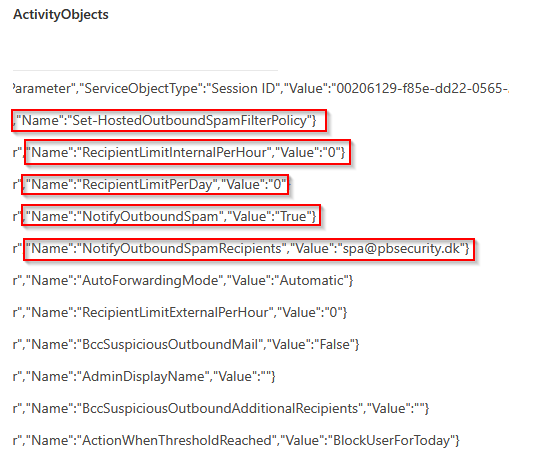
The field ‘ActivityObjects’ in the output (not visible on the image below, as you need to scroll further left in the default output of columns) contains the actual settings that the policy has been now configured with. You can see a preview in the image below – for example, the “NotifyOutboundSpamRecipients” is set to the email address “spa@pbsecurity.dk”.
By using the above mentioned action types, we can either query the Advanced Hunting logs, or we can create and schedule custom detections to run e.g. daily. Custom detection is particularly useful as it will ensure that for any changes, an alert is generated.
Conclusion
Alerting on policy changes can help identify unwanted/unauthorized changes. While a certain Exchange Online license is required for some of the logs, they are not collected by default once the license is upgraded. A manual action is required to begin collecting these logs.
If you have the required licenses, it is highly advised to ensure that logs are in fact collected, and alerts are configured.